Settings help
General..
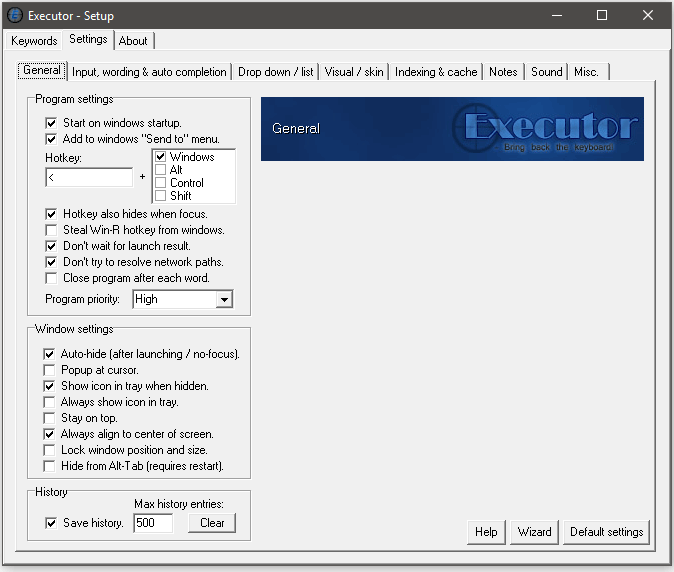
Program settings
- "Start on windows startup" - Should Executor startup when windows startup...
- "Add to windows 'send to' menu" - If enabled you can add keywords by right-clicking a file/short-cut and selecting Executor under "Send to".
- "Hotkey" - Which hotkey should activate the program.
- "Hotkey also hides when focus" - If enabled pressing the global hotkey while Executor already has focus will have the hotkey hide Executor.
- "Steal Win-R hotkey from windows" - Will try to override the default hotkey for windows run. Does not appear to work on Vista.
- "Don't wait for launch result" - When Executor launches something it waits for the process to tell if it was a success or failure. This can in some cases stall Executor if the launched process is slow to respond with a result. Enabling this option will have Executor ignore the response and continue always presuming that the launch was a success.
- "Don't try to resolve network paths" - When typing a network path (for example "\\192.168.0.10\" or "\\storagecomputer\music\") Executor will try to detect icon/title and files/folders, but if the network path is unavailable or slow this might stall Executor (as it's waiting for windows to search for the network path) which can be pretty annoying. If this option is enabled Executor will not search for icon/title/files/folder for network paths starting with "\\".
- "Close program after each word" - Executor will shutdown after each word is executed. Some people are very picky about programs taking up memory/resources. So by this you can for example make a shortcut to Executor and assign the shortcut with a hotkey. Then Executor will start-up when this is pressed and close down after command execution.
- "Program priority" - The priority of the Executor process.
Window settings
- "Auto-hide (after word / no-focus)" - Will hide Executor after a word has triggered or if Executor loses focus.
- "Popup at cursor" - If enabled Executor will appear next to the cursor when gaining focus.
- "Show icon in tray when hidden" - Shows a clickable icon in the system tray when Executor is hidden.
- "Always show icon in tray." - Always show a clickable Executor icon in the system tray.
- "Stay on top" - Will put the Executor window on top of others. If you want Executor visible all the time you can enable this and disable "Autohide".
- "Always align to center of screen" - Will center the Executor window on the screen every time it's displayed.
- "Lock window position and size" - Will make sure Executor will remain at the same position and size.
- "Hide from alt tab (requires restart)" - Will make sure Executor is not shown in the application list when pressing alt-tab in Windows.
History
- "Save history" - Should history be saved when closing Executor.
- "Max history entries" - The maximum number of history entries.
- "Clear" - This will clear all history.
Input, wording & auto completion..
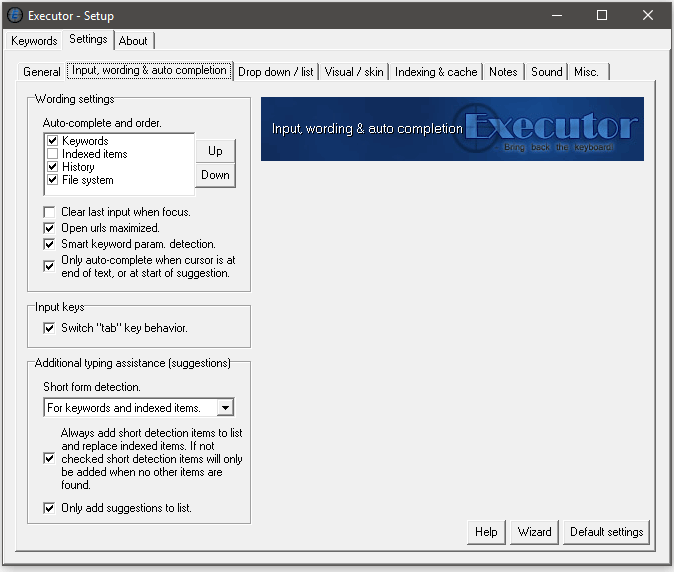
Wording settings
- "Auto-complete and order" - When typing text the enabled types will auto-complete if matching the text. Also in the prioritized order specified.
- "Clear last input when focus" - Clears the input text when Executor gains focus.
- "Open urls maximized" - When entering an url this will always open them in a maximized window.
- "Smart keyword param. detection" - If Executor detects the keyword support parameters (in any of the keywords fields) it will automatically add a space character to the auto-completed keyword.
- "Only auto-complete when cursor is at end of text, or at start of suggestion." - This makes auto-completion less aggressive, and allows for easier editing of text to avoid auto-completion suggesting something while for example editing the middle part of the text input. Can be found in settings under "Input, wording & auto-completion".
Input keys
- "Switch 'tab' behavior." - Normally tab will cycle auto-complete items and ctrl+tab will move to the next delimiter if any. This will switch the keys so tab will move to the next delimiter and ctrl+tab will cycle the auto-completed items.
Additional typing assistance (suggestions)
- "Short form detection" - If enabled Executor will try to detect acronyms etc. Example ffox will have Executor suggest firefox, vs2008 might suggest Visual Studio 2008
- "Always add short detection items to list and replace indexed items. If not checked short detection items will only be added when no other items are found." - Hopefully self explanatory.
- "Only add suggestions to list" - If enabled suggestions will not appear in input, only in list. Handy along with the (default) option that "enter" will launch the first suggestion in the list.
Drop down / list
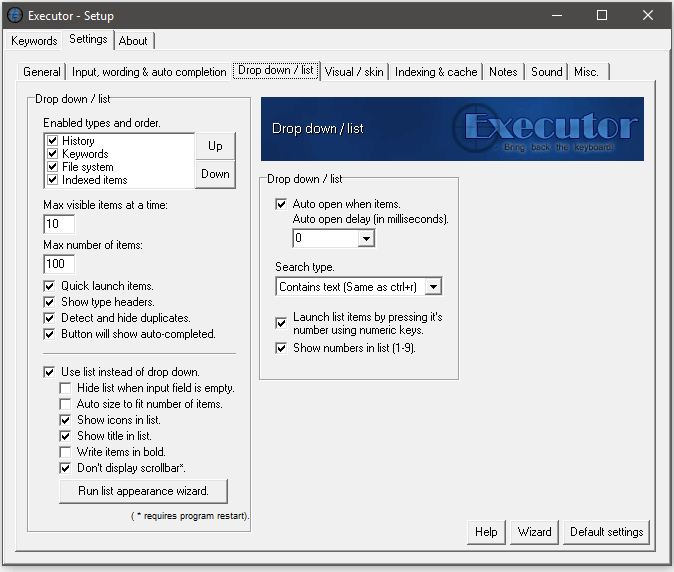
Drop down /list
- "Enabled types and order" - Which types should be displayed in the drop-down (or list) and in which order.
- "Max visible items in the drop down" - The maximum number of items visible in the drop-down (or list).
- "Max number of items in drop down" - The maximum number of items in the drop-down (or list).
- "Auto open when items" - Will automatically open (but not focus) the drop-down (or list) when there are items matching the input text.
- "Quick launch items" - When enabled, selecting an item from the drop-down (or list) will launch it instantly. When disabled the selected item will just be put in the input field.
- "Show type headers" - Will in the drop-down (or list) make a header for each type (History, Keywords etc).
- "Dectect and hide duplicates" - If enabled it will not list an item more than once in the drop-down/list (if for example it exists both in history and keywords).
- "Button will show auto-completed" - If enabled pressing the drop-down button will show only items matching the current input. If disabled pressing the button will show all items.
- -
- "Use list instead of drop down" - If enabled a list (sorted like Vista's start menu) will be used instead of the drop-down.
- "Hide list when input field is empty" - If enabled the list acts like a drop-down menu (closing when empty input etc).
- "Auto size to fit number of items" - If enabled this will trim down (auto size) the height of the list, if the list contains less than the max number of visible items.
- "Show icons in list" - Should the associated icon be displayed, if the list seems slow you can try disable this.
- "Show title in list" - Should the title (description) be shown for each item in the list. Disabling this can also make the list faster.
- "Write items in bold" - If enabled each item will be written with the bold font style (more easy to read).
- "Don't display scrollbar" - If enabled the scrollbar in the list will never be drawn, instead small arrows will indicate if there are more top or bottom items.
- "Run list appearance wizard" - This lets you choose if the list should display small or large rows, and can also change font and font size for the list.
- -
- "Auto open when items" - Should list automatically open with suggested items when something is typed.
- "Auto open delay" - Like other (or another) popular launcher(s) you can have a defined delay before the suggestion list is displayed. If you feel slowdowns while you type you can try set this delay. Some might also find the delayed list more suitable. "Auto open when items" must be enabled for this setting to have any effect.
- "Search type" - Defines if the list should show items that "Starts with" text or "Contains text". Also see short form detection above as this can be combined with these.
- "Launched list items by pressing its number using numeric keys." - With this option you can execute the first nine items in the list by just pressing its corresponding number on the numeric keys (if your keyboard has numeric keys and they are enabled).
- "Show numbers in list (1-9)." - Will show the numbers 1 to 9 in the right side of the list, as a help to the above feature.
Visual / skin
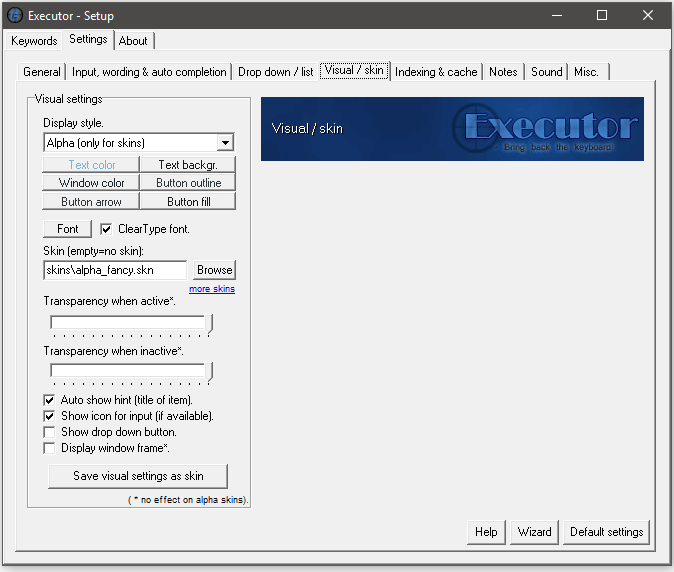
Visual settings
- "Display style" - Executor have four styles: mini, small, medium and alpha.. Alpha is for skin use only.
- "Text color" - Set the color of the input font.
- "Text backgr." - Set the background color of the text input.
- "Window color" - Set the window border color.
- "Button outline" - Set the button border color.
- "Button arrow" - Set the button arrow color.
- "Button fill" - Set the inside color of the button.
- "Font" - This can change the size and font name of the input font.
- "Use ClearType" - use ClearType (smooth) font. This option can be enabled even though your Windows is not set to use ClearType. If your Windows is already using ClearType this option will do nothing. Option can be found in settings (Visual).
- "Skin" - The skin file to use. This field also supports $D$ for portability, so skin could be $D$\tools\executor\skins\medium_simpler.skn. Alternatively the skin text field also support relative paths from the Executor folder, so it could be (skins\medium_simpler.skn).
- "Auto show hint" - Will show a hint displaying info on the entered/selected input text (keyword comment, file type etc). A hint can also be shown by pressing ctrl+t
- "Show icon for input" - Show icon be displayed ?
- "Show drop down button" - Show the drop down button be displayed ?
- "Display window frame" - Should Executor be displayed in a window frame ? (not compatible with alpha skins).
- "Save visual settings as skin" - With this option you can save your visual settings as a skin file.
Indexing, scanning & cache
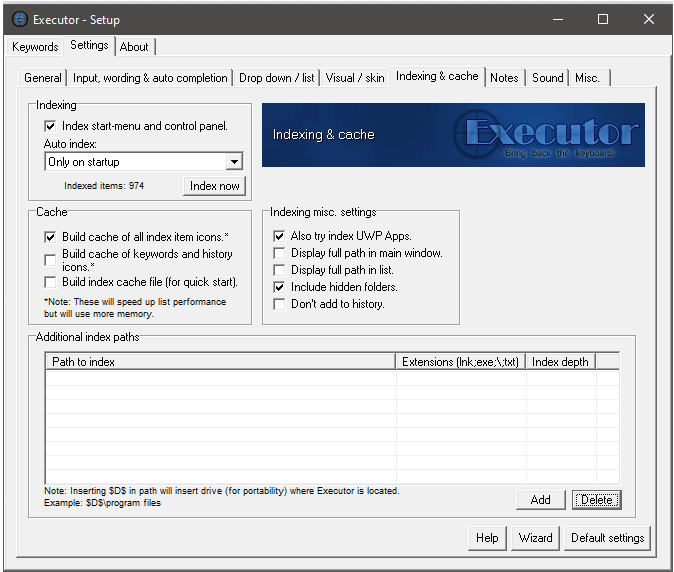
Indexing
- "Scan start-menu and control panel" - Will scan and index the start-menu, control panel, desktop, quick launch area and a couple of other handy items.
- "Auto index - setting (drop-down) to indexing called "Auto index". This has the following options: "Never", "Only on startup", "Only on focus", "On startup and on focus", "Only on 15 minutes of idle", "On startup and on 15 minutes of idle". This replaces the previous checkbox option called "Only index on startup". A note on the new "15 minutes of idle", Executor will not index again if the machine keeps being idle after 30 min and then again 45 min etc. Executor will detect if the computer is still in the same idle state since last indexing, and will only start indexing if it's a new idle state.
- "Scan now" - Will start scanning both start-menu (if enabled) and additional scan paths if any.
Cache
- "Build cache of all scanned icons" - To speed up the list, Executor can build a cache of the scanned item icons, but there can be a lot of scanned items icons. So this option can take up 3 - 15mb extra memory, also this will make programs detection a bit slower (as icons have to be loaded when building cache).
- "Build cache of keywords and history icons" - Executor can build an icon cache for history and keywords.. this is to speed up listing/loading of these icons at the cost of using more memory.
- "Build index cache (for quick start)" - This applies to indexed items. When closing Executor all indexed items are saved to a file, and when Executor is started this is loaded and used before the new index scan is complete. If using Executor on a usb-drive between different computers this setting should probably not be used.
Additional scan paths
- "Path to scan" - The path to scan.
- "Extensions" - The file extensions that the scanning should include to index. Each separated with a ; (semi-colon) if folders should be added to index use \ as a file extension.
- "Scan depth" - Max number of subfolder depth that should be scanned .. 0 if subfolders shouldn't be scanned.
Index misc. settings
- "Also try index UWP Apps" - This will try to index UWP Apps as well if indexing is enabled. UWP Apps are mostly those "new" built-in Windows Apps that look like they were made for small children, in order to be tablet/touchscreen friendly etc. A prerequisite for this is you're running the bit version of Executor that matches the bit version of the operating system. For example if you're running Windows 10 64bit, you also need to run the 64bit version of Executor in order for the indexer to pick up these UWP Apps. Also on Windows versions older than Windows 10 this might not work (UWP Apps will then just not be indexed). Certain user security restrictions might also prevent the indexing. The option is on by default. The UWP Apps are the last items that the Executor indexer will scan, so you might need a bit of patience the first time (but they will be cached etc. if you have cache options enabled)..
- "Display full path in window" - Should Executor display the full path of index items in input window.
- "Display full path in list" - Should Executor display the full path of index items in list.
- "Include hidden folders" - If enabled hidden folders will also be indexed.
- "Don't add history" - If enabled indexed items will not be added to history.
Notes
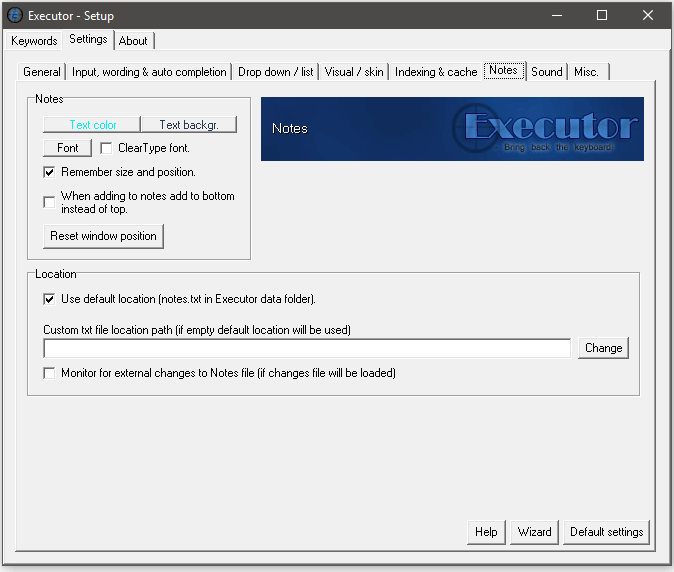
Notes
- "Text color" - Text color of the Notes editor.
- "Text backgr" - Background color of the Notes editor.
- "Remember size and position" - Text color of the Notes.
- "When adding to notes add to bottom instead of top" - Quick notes (example: -n remember milk) will be added to bottom instead of top.
- "Reset window position" - In case your Notes window gets lost you can click this to reset it.
Location
- "Use default location (notes.txt in Executor data folder)." - Use this to reset Notes location to default location.
- "Custom location file location path" - Notes can be located on custom location, for example a folder that is a synchronised cloud drive like one drive, dropbox, google drive. If clicking the Change button you will be asked if you want to keep current notes and move them, or discard them and use a new location file, or if you want to merge the two notes and use a new location with these merged notes. The location also supports $D$ and $H$ for portability, but you then have to edit Executor.ini manually (noteslocation=) while Executor is closed.
- "Monitor for external changes to Notes file" - This will monitor the Notes file for external changes, and if any refresh these in the Notes (also if Notes window is open).
Sound
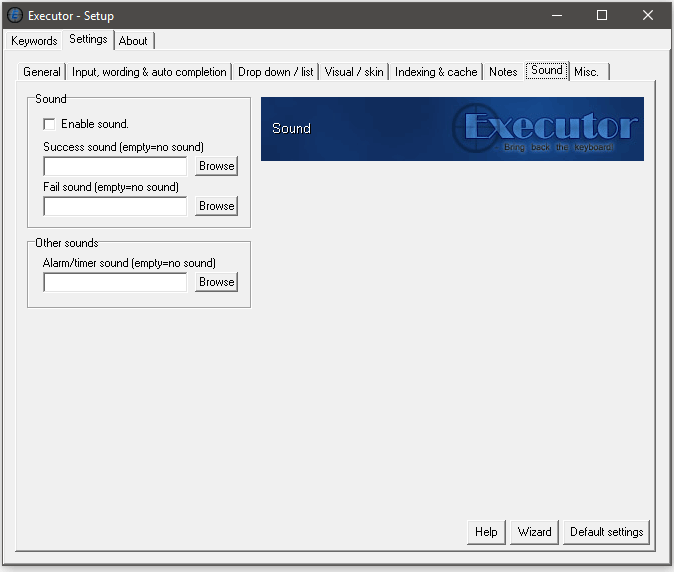
Sound
- "Enable sound" - Should Executor use sound.
- "Success sound" - The sound sample that will play when a command is executed with success.
- "fail sound" - The sound sample that will play when a command is executed with no success.
Other sound
- "Alarm/timer sound (empty=no sound)" - Executor has a timer and an alert keyword, this sound will be used with these if enabled.
Misc
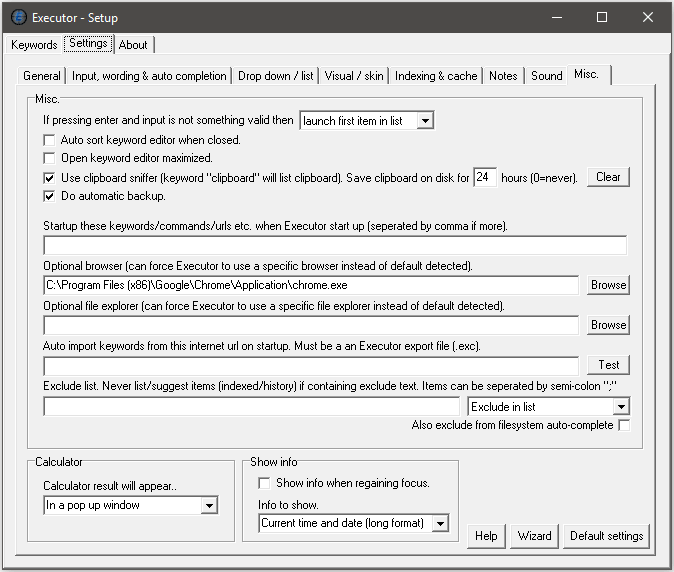
Misc
- ""If pressing enter and input is not something valid then" - This can be set to "do nothing", "launch first item in list" (list setting must be enabled for this to work) or it can be set to "open text in browser". If using the last option then power users can change the default search keyword used in executor.ini named "fastsearch" (type "-edit" to open executor.ini).
- "Auto sort keyword editor when closed" - If enabled this will sort the keywords in the editor each time the editor is closed.
- "Open keyword editor maximized" - If enabled the keyword editor will always open in full screen size.
- "Use clipboard sniffer (keyword "clipboard" will list clipboard entries)" - Should Executor pick up clipboard content (can be viewed with the keyword clipboard).
- "Save Clipboard on disk for X hours (0=never)" - if Executor is closed, clipboard items are not lost in Executor for up to X hours. Be aware that the saved clipboard entries are not protected on disk, but only obfuscated to not be readable clear text.
- "Do automatic backup" - Executor will make automatic backups of its data file (executor.ini). File will be located next to executor.ini but called executor.ini.bak
- "Startup these keywords..." - Here you can list keywords, commands etc. to startup when Executor starts up.
- "Optional browser" - This can force the browser to be something else than the default browser. It must point to the exe file of the browser. Example: browser=c:\program files\firefox\firefox.exe ... If the browser field is empty, default browser is used.
- "Optional file explorer" - Can have Executor open paths with something else than Windows Explorer. Path will be appended (double quoted and with leading space) to the value of "explore". Example: explore="c:\program files\totalcmd\totalcmd.exe" or explore="c:\program files\totalcmd\totalcmd.exe" /N
- "Auto import keywords from this internet url on startup. Must be an Executor export file (.exc)" - Executor can auto import keywords from an url on startup, so you can share keywords between different Executor installations (for example a corporation has a bunch of general handy keywords for all employees). By this you can share keywords on different Executor installations (provided they have internet access and you have somewhere to host this keyword file). Setting can be found in settings - misc (along with a test button). This will be loaded async when Executor starts up (to prevent hanging if no internet is available) so it might take some seconds for the keywords to be available. Also these imported keywords will overwrite (update) any existing keywords of the same name. If you want these to be imported faster there's a hidden setting named "importurlfast", see hidden settings for more details.
- "Exclude list" - Will hide items in history/indexed items and recent. The indexer will also skip indexing these and subfolders in these.
- "Exclude list dropdown" - Control if exclude list should affect only list or also input auto-completion.
- "Also exclude from filesystem auto-complete" - Should file/folder path auto-completion be affected by the exclude list.
Calculator
- "Calculator result will appear.." - This determines how the calculator result should appear. See help section for how to use the calculator.
Show info
- "Show info when regaining focus" - If enabled Executor can show some information when it gains focus, this information is cleared as soon as a key is pressed. See hidden settings if you want to customize this info further than the visual user interface allows.
->
Back to main help section < -